

Have you updated your WordPress website only to see the message, “Briefly unavailable for scheduled maintenance. Check back in a minute”?
WordPress normally displays this message while updating its core software, plugins, or themes. Once the update finishes, your website should return to normal. However, an interrupted update can sometimes leave your site stuck in maintenance mode.
The good news is that you can usually take WordPress out of maintenance mode by removing the .maintenance file from your website’s root directory. In this guide, we’ll explain how to do that safely, explore other ways to restore your site, and show you what to check if the problem persists.
What is WordPress Maintenance Mode?
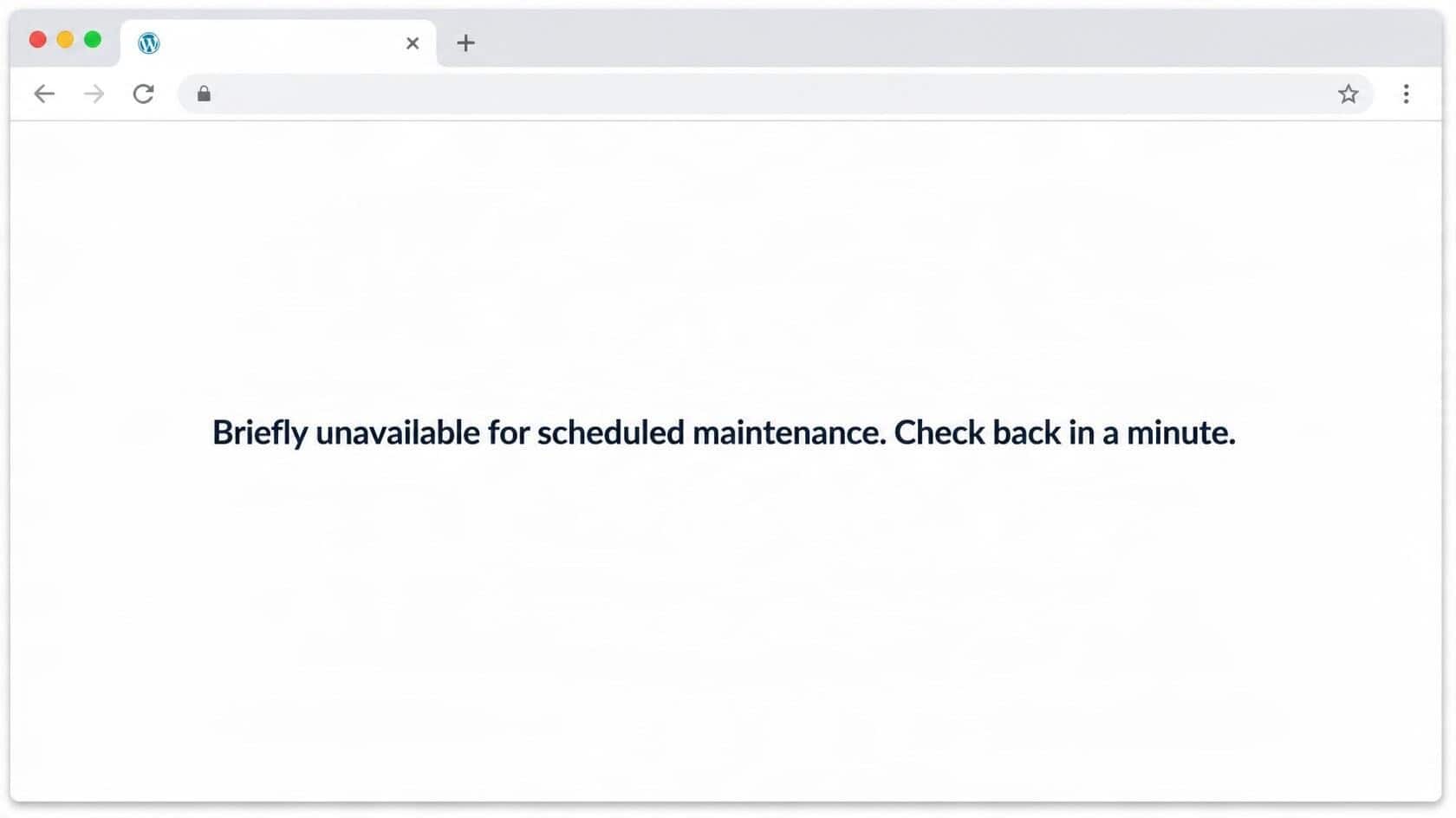
WordPress maintenance mode temporarily displays a maintenance message while certain updates are being processed. This helps prevent visitors from interacting with the website while changes are taking place.
When WordPress starts an update, it creates a temporary file called .maintenance in the website’s root directory. Once the update finishes, WordPress normally removes this file automatically.
However, an update may fail because of a timeout, server error, or another interruption. If the maintenance file remains after the update has stopped, visitors may continue seeing the maintenance message.
There’s an important difference between normal maintenance mode and a website that’s stuck in maintenance mode. If an update is still running, give it time to finish. If the update has stopped but the message remains, you may need to remove the file manually.
Why Is My WordPress Site Stuck in Maintenance Mode?
Several issues can leave your WordPress website stuck in maintenance mode. Identifying the likely cause can help you prevent the same problem from happening again.
1. A WordPress update failed or was interrupted
An update may fail if the server times out, a connection drops, or the request doesn’t finish successfully. When this happens, WordPress may not complete its normal maintenance cleanup.
For example, a plugin update might stop halfway through because the hosting server runs out of resources. The website may continue displaying the maintenance message even though the update is no longer running.
2. A server or hosting problem occurred
Your hosting environment plays an important role in WordPress updates. Slow server responses, limited resources, insufficient storage, or other hosting problems can prevent an update from finishing.
If your website frequently gets stuck in maintenance mode, it’s worth checking whether the hosting environment is contributing to the problem.
3. A plugin or theme caused an error
An outdated or incompatible plugin or theme can sometimes cause problems during an update. If your website becomes stuck immediately after updating a particular plugin, that plugin may need further investigation.
Removing the maintenance file might restore access to the website. However, it won’t automatically fix a plugin that failed to update correctly.
4. A plugin rollback or maintenance process failed
Some plugins have their own update, rollback, or maintenance processes. If one of these processes fails, removing WordPress’s standard .maintenance file may not resolve the issue.
For example, a plugin rollback may leave behind a plugin-specific maintenance file. In this situation, you’ll need to identify which process is responsible before removing additional files.
Don’t let another WordPress update slow your business down.
If your website keeps running into update problems, it might be time to get some extra help. At SetMySite, we can take care of your WordPress updates, security, and regular maintenance so you don’t have to deal with every technical issue on your own.
Check out our WordPress maintenance plans and find one that works for your website.
How to Take WordPress Out of Maintenance Mode
If your WordPress site is stuck in maintenance mode, there are several ways to get it working again.
Before making changes to your website files, it’s a good idea to have a recent backup available. If you’re not comfortable working with website files, you can also contact your hosting provider or a WordPress professional for help.
Step 1: Check whether the update has finished
Before deleting any files, give WordPress a few minutes to finish the update.
Check whether your hosting account or WordPress dashboard indicates that an update is still running. Avoid repeatedly starting the same update while the process is incomplete.
Once you’re confident that the update has stopped, refresh your website. You can also open it in a private or incognito browser window to check whether you’re seeing a cached version of the maintenance message.
If your website loads normally, you don’t need to do anything else. If the message remains, move to the next step.
Step 2: Delete the .maintenance file
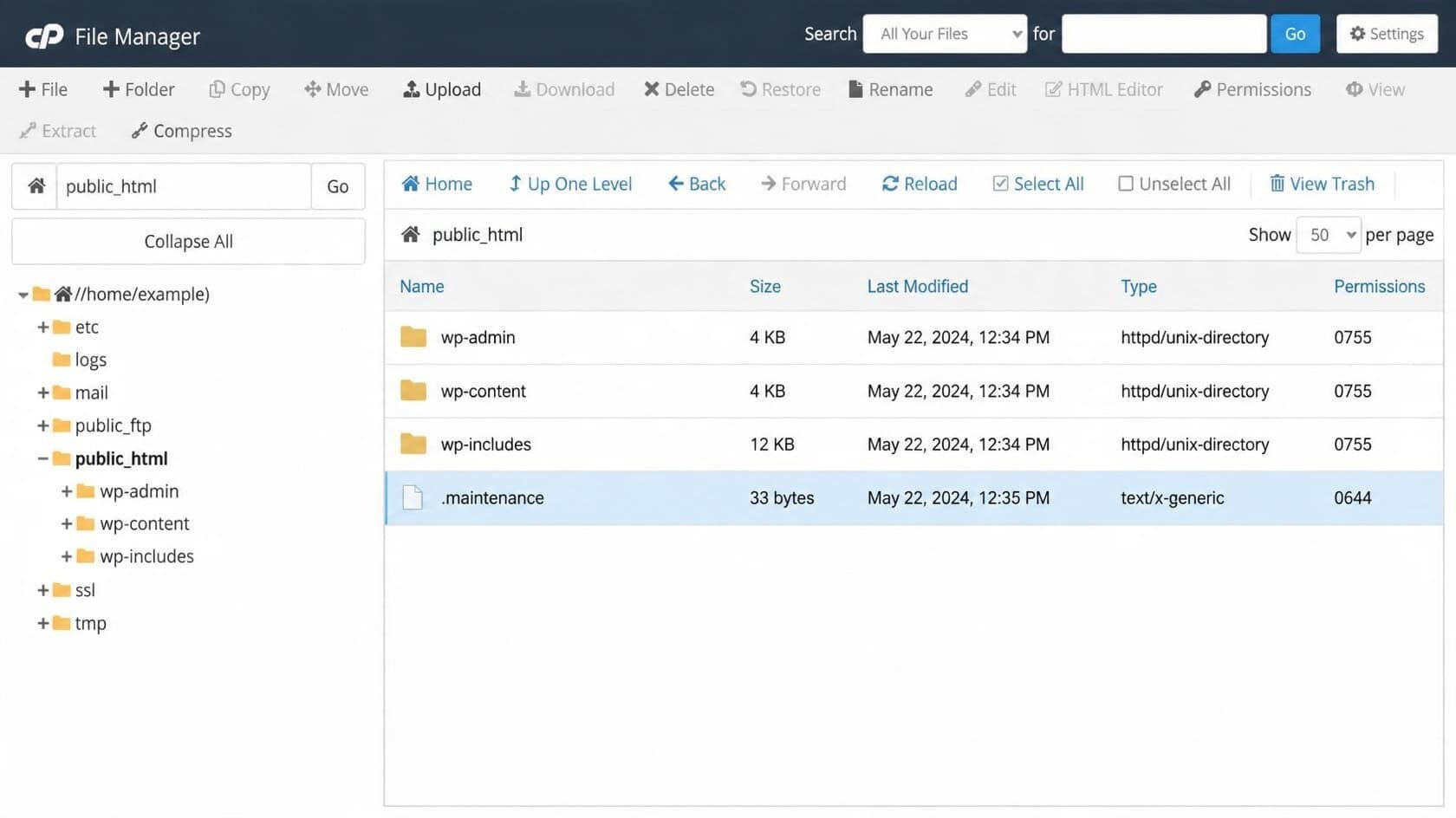
The most common fix for a WordPress site stuck in maintenance mode is to remove the .maintenance file from the website’s root directory.
For more details, you can also check WordPress’s official guide to common errors, which explains how to clear the maintenance message after an interrupted update.
You can do this through your hosting account’s File Manager or an FTP client. Here’s how to find and delete the file:
- Log in to your hosting account.
- Open your hosting File Manager or connect to your website using FTP.
- Find the directory containing your WordPress installation.
- Look for the .maintenance file.
- Delete the .maintenance file.
- Return to your website and refresh the page.
Your WordPress root directory usually contains folders named wp-admin, wp-content, and wp-includes. These can help you identify the correct location.
What if you can’t find the .maintenance file?
The file may be hidden by your hosting File Manager. Look for an option such as “Show Hidden Files” or “Show Hidden Files (dotfiles)” and enable it.
If the file still isn’t visible, double-check that you’re in the correct WordPress installation. If the file is genuinely absent, another plugin, hosting service, or maintenance process may be responsible for the message.
Be careful when working with website files. Deleting the wrong file can cause additional problems, so make sure you’re removing only the file you intend to delete.
Step 3: Use FTP if you can’t access File Manager
If you don’t have access to your hosting File Manager, you can use an FTP client to connect directly to your website’s files. FTP is a way to transfer files between your computer and your hosting server.
To remove the maintenance file using FTP:
- Open your FTP client and connect using your hosting credentials.
- Locate your WordPress root directory.
- Enable hidden-file visibility if necessary.
- Find the .maintenance file.
- Delete the file after confirming that the update has stopped.
- Refresh your website to check whether it loads normally.
FTP is useful when you can’t access the WordPress dashboard. However, you should be careful when changing files directly on a live website. If you’re unsure which directory contains your WordPress installation, contact your hosting provider before making changes.
Step 4: Use WP-CLI to disable maintenance mode
Advanced users with SSH access can also use WP-CLI to manage WordPress maintenance mode. WP-CLI is a command-line tool that lets you perform WordPress tasks without using the dashboard.
If WP-CLI is installed and configured on your server, you can use the following command from the correct WordPress installation directory:
wp maintenance-mode deactivate
This command deactivates WordPress maintenance mode.
Before running it, confirm that the update has stopped and that you’re working in the correct WordPress installation. You may also need the appropriate server permissions. If you’re unfamiliar with command-line tools, using your hosting File Manager or FTP is usually simple.
Additional reading: WordPress Support Retainer: What It Is and Why Your Website Needs One
What to Do If WordPress Keeps Going Back Into Maintenance Mode
Deleting the .maintenance file often resolves the immediate problem, but it doesn’t guarantee that the underlying issue has been fixed. If your website is still unavailable, work through the following checks.
Check whether the maintenance file is missing
If you can’t find .maintenance, make sure hidden files are visible and that you’re looking in the correct WordPress root directory.
If the file isn’t there, investigate whether a plugin, hosting service, or another maintenance process is displaying the message. Some plugins use their own maintenance files, so don’t delete unfamiliar files without confirming what created them.
Check for failed plugin or theme updates
If the maintenance message disappears but your website isn’t working properly, an update may have failed partway through.
Check your WordPress dashboard for update notices and identify any plugins or themes that stopped working. If the problem started immediately after updating a particular item, focus your investigation there.
Avoid repeatedly running the same update without first checking for errors.
Look for plugin or theme conflicts
A plugin or theme conflict may prevent your website from working correctly after an update.
If necessary, you may need to deactivate a suspected plugin or test the website with a default WordPress theme. However, these changes can affect your live website’s features and appearance.
If possible, test changes on a staging site first. Make sure you have a recent backup before changing plugins or themes on a live website.
Check your hosting environment and error logs
If the problem continues, check your hosting account for server errors or resource limitations.
Depending on your hosting setup, relevant issues may include PHP errors, memory limits, execution time limits, insufficient storage, or database errors.
Your hosting provider may also give you access to server error logs. Reviewing errors that occurred around the time of the failed update can help identify the cause.
If you’re not comfortable reviewing these settings, ask your hosting provider or a WordPress professional for help.
Restore a backup if necessary
If an update has seriously damaged your website, restoring a recent backup may be an option.
A backup can help recover your website files and database, but restoring an older copy may remove content or changes made after the backup was created.
Before restoring anything, confirm which version you’ll be restoring and what data may be replaced. If you’re unsure, seek professional help rather than risking the loss of recent website changes.
How to Prevent WordPress From Getting Stuck in Maintenance Mode
You can’t prevent every update failure, but good website maintenance can reduce the chances of running into the same problem again.
Keep WordPress, plugins, and themes updated
Regular updates help maintain website security and compatibility. However, updates should be applied carefully.
Review available updates, check for known compatibility issues when appropriate, and test important website functions afterward. If a particular plugin repeatedly causes problems, investigate it before attempting another update.
If you’re unsure how to update your website safely, read WordPress’s guide to updating WordPress for steps on preparing for updates, creating backups, and handling failed updates.
Backup your website regularly
A recent backup gives you a way to recover if an update causes unexpected problems.
Your backup plan should cover both website files and the database. It’s also a good idea to store backups separately from your live website.
For important websites, make sure you know how to restore a backup before you need one.
Use reliable hosting
Your hosting environment affects how well WordPress handles updates.
Choose hosting that provides adequate resources for your website and offers access to support when server-related problems occur. If updates repeatedly time out or fail, ask your hosting provider whether resource limits or server errors may be involved.
Remove plugins and themes you don’t need
Unused plugins and themes can add unnecessary clutter to your WordPress installation.
Review your installed software periodically and remove items you no longer use, after confirming they’re not needed by your website. Keeping your installation organized can also make troubleshooting easier.
Monitor your website
Website uptime monitoring can alert you when your site becomes unavailable.
This is especially useful for businesses that rely on their websites for inquiries, bookings, sales, or customer communication. Early alerts give you a chance to investigate problems before they affect more visitors.
Consider professional WordPress maintenance
If you don’t have the time or technical knowledge to manage updates, backups, security, and troubleshooting, professional website management can help.
A WordPress maintenance service can handle routine updates, monitor website availability, maintain backups, and help resolve technical problems when they occur.
This can be particularly useful for businesses that depend on their websites but don’t have an in-house technical team.
Too busy running your business to keep up with website maintenance?
We get it. Between managing customers, handling daily tasks, and growing your business, checking your website shouldn’t be another thing on your to-do list. SetMySite helps with updates, backups, security, and website fixes to keep your WordPress site in good shape. Reach out to our website experts today!
When Should You Contact a WordPress Professional?
Removing the .maintenance file is often straightforward, but some problems require additional technical work.
Consider contacting a WordPress professional if:
- Your website remains stuck in maintenance mode after removing the file.
- The .maintenance file is missing, and you can’t identify the cause.
- Your WordPress dashboard is inaccessible.
- Your website displays PHP, database, or server errors after an update.
- A plugin or theme has stopped working.
- Your website repeatedly gets stuck during updates.
- You don’t have a recent backup or aren’t comfortable changing website files.
A professional can investigate the cause rather than simply removing the maintenance message.
Let SetMySite take website maintenance off your plate
You don’t need to spend your time fixing website errors, checking updates, or worrying about whether your site is secure. SetMySite offers WordPress maintenance and support plans for businesses that want a website they can rely on.
Whether you need occasional help or ongoing support, we have a plan to suit your needs. Ready to spend less time managing your website? Find your SetMySite plan today!
Conclusion
A WordPress website stuck in maintenance mode can often be restored by removing the .maintenance file from the root directory after confirming that the update has stopped. If the message remains or your website develops other errors, you may need to investigate failed updates, plugin conflicts, or server problems.
Regular backups, careful updates, and website monitoring can help reduce maintenance issues. If you need help keeping your website running smoothly, SetMySite’s WordPress management and support services can take routine maintenance and troubleshooting off your plate.
If your WordPress site gets stuck again, knowing how to take WordPress out of maintenance mode can help you restore access and get your website back to normal.
Frequently Asked Questions (FAQs)
How long does WordPress maintenance mode normally last?
WordPress maintenance mode is temporary and should end automatically when the update finishes. The exact duration depends on the update and your hosting environment. If the message remains after the update has stopped, your website may be stuck in maintenance mode.
Why is my WordPress site still showing “Briefly unavailable for scheduled maintenance”?
This can happen when an update fails or doesn’t complete its normal cleanup process. WordPress may leave the .maintenance file in the root directory, causing the maintenance message to remain visible.
Will deleting the .maintenance file break my website?
Deleting the file is a common fix when an update has stopped, but WordPress remains in maintenance mode. However, it won’t repair an update that failed halfway through. Confirm that the update has stopped, and make sure you have a recent backup before changing website files.
Can I disable WordPress maintenance mode from the dashboard?
If your website is stuck in maintenance mode, the WordPress dashboard may be inaccessible. In that case, you can usually remove the standard .maintenance file through your hosting File Manager or FTP. Advanced users may also be able to use WP-CLI.
What should I do if the .maintenance file is missing?
First, enable hidden-file visibility and confirm that you’re checking the correct WordPress root directory. If the file is genuinely absent, investigate whether a plugin or hosting service is displaying its own maintenance message.
What should I do if my website is still down after removing maintenance mode?
Check for failed updates, plugin or theme conflicts, and server or database errors. Review available error logs and contact your hosting provider or a WordPress professional if you can’t identify the cause.